With Two Monitors connected to the Dock: #
- Right click on your Desktop
- Select Display Settings
- Ensure ‘Extend Desktop on 1 and 2’ is selected:
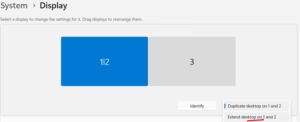
4. Click ‘Identify’ (Numbers will appear on Laptop and Monitors):
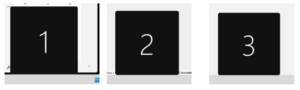
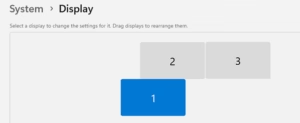
5. In the Display Settings Window, Drag and Drop the Monitors so they are in correct position. E.g. in below example 1 is the laptop, 2 is Left Monitor and 3 is the Right Monitor:
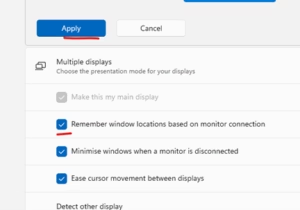
6. Click ‘Apply’. To Remember your selection, ensure ‘Remember window locations based on monitor connection’ is ticked:
With One Monitor connected to the Dock: #
- Right click on your Desktop
- Select Display Settings
- Ensure ‘Extend these Displays’ is selected:
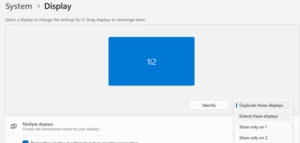
Click ‘Keep Changes’ when prompted
- Click ‘Identify’ (Numbers will appear on Laptop and Monitors)

5. In the Display Settings Window, Drag and Drop the Monitors so they are in correct position. E.g. in below example 1 is the laptop, 2 is the Monitor.:

6. Click ‘Apply’. To Remember your selection, ensure ‘Remember window locations based on monitor connection’ is ticked: