- Sign in to Microsoft 365 with your work or school account with your password like you normally do. After you choose Sign in, you’ll be prompted for more information.
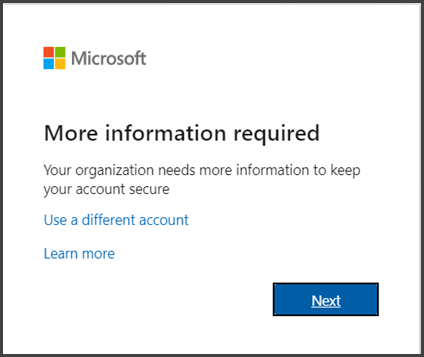
- Choose Next.
- The default authentication method is to use the free Microsoft Authenticator app. If you have it installed on your mobile device, select Next and follow the prompts to add this account. If you don’t have it installed there is a link provided to download it.If you would rather use SMS messages sent to your phone instead, select I want to set up a different method. Microsoft 365 will ask for your mobile number, then send you an SMS message containing a 6-digit code to verify your device.
Tip: For a faster, and more secure, experience we recommend using an authenticator app rather than SMS verification.
- Once you complete the instructions to specify your additional verification method, the next time you sign in to Microsoft 365, you’ll be prompted to provide the additional verification information or action, such as typing the verification code provided by your authenticator app or sent to you by text message.
Note: Generally you’ll only need the additional verification method the first time you sign into a new app or device, or after you’ve changed your password. You probably won’t be asked for the additional verification code on a daily basis, unless your organization requires it.